 GSEC
GSECGolden Image · Custom Packages
Add Your Own RPMs
Include your own home-built RPM packages in a Golden Image build, alongside the standard package selection, using Add your RPMs on the Golden Image page.
Before you start
Format your USB drive as FAT32. NTFS-formatted drives are not supported by the installer — the mount step below will fail with unknown filesystem type 'ntfs'. Copy your .rpm files onto the drive once it's formatted.
At a glance
Tested & confirmed workingmkdir -p /mnt/usb
mount /dev/sda1 /mnt/usb
Which key brings the GUI back? The installer's graphical screen doesn't always sit on the same console number. Try Ctrl+Alt+F1 first; if nothing happens, try Ctrl+Alt+F6 instead.
Connect your USB drive
Plug the USB drive into your server before opening the Golden Image page.
Open "Add your RPMs"
On the Installation Summary screen, select Make Golden Image ISO under Golden Image, then click Add your RPMs.
Locate your USB drive
The installer's file browser doesn't list external drives automatically. Make it visible first:
- a. Click once inside the installer screen, then press Ctrl+Alt+F2 to switch to a root console.
- b. Identify your drive:
lsblk
Look for a removable disk (RM = 1) matching your drive's size — for example
sda1.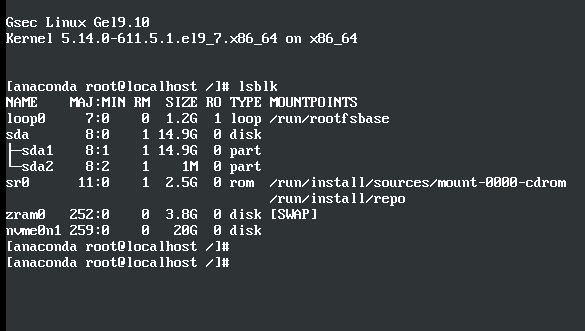
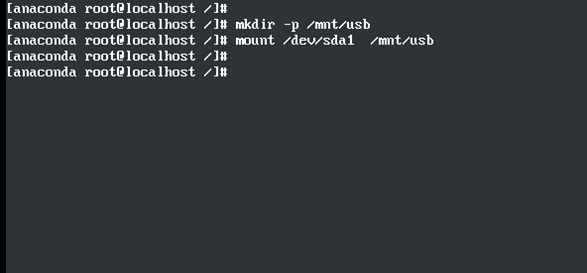
- c. Mount it:
mkdir -p /mnt/usb
mount /dev/sda1 /mnt/usb
- d. Return to the installer with Ctrl+Alt+F1 (or Ctrl+Alt+F6 if the screen doesn't change).Which key brings the GUI back? The installer's graphical screen doesn't always sit on the same console number. Try Ctrl+Alt+F1 first; if nothing happens, try Ctrl+Alt+F6 instead.
Add your RPMs
In the file browser, navigate to your mounted drive:
Your RPM files are now listed. Select the ones you want and click Add.